Webflow API Integration for Custom Business Workflows
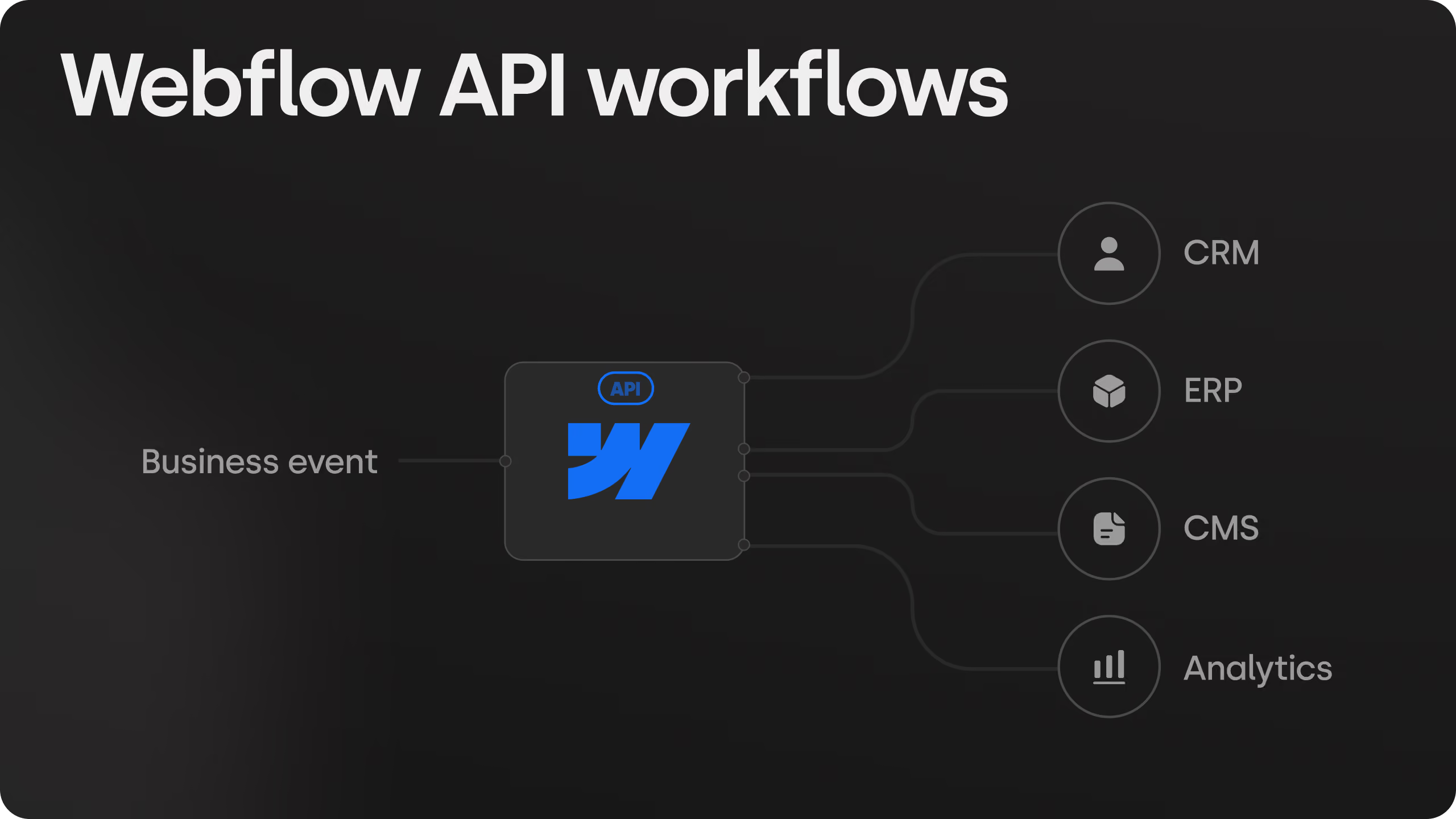
Webflow API integrations allow you to connect your website with virtually any business system, from CRMs, ERPs, and payment providers to marketing platforms, internal tools, and custom applications. Combined with native integrations, automation platforms like Make, or fully custom APIs, they transform Webflow from a standalone website into an operational hub that automates workflows, synchronizes data, and supports the systems behind your business. The business impact can be substantial. At Skywwward, automating Opencare's lead qualification and CRM routing contributed to 61% more inbound leads, 158% more qualified leads, 431% more demos booked, and 654% more closed-won deals, while eliminating a manual review process that had become a bottleneck as the business scaled.
The challenge isn't whether Webflow can integrate with your existing technology stack, but it's choosing the right implementation approach. Some workflows are best solved with native integrations or no-code automation through platforms like Make, while others require custom APIs, authentication, business logic, or server-side processing. Selecting the wrong architecture often creates unnecessary complexity, reliability issues, or limitations that only become apparent as your operations grow.
This guide explains what the Webflow API can and cannot do, when to choose native integrations, Make, or custom development, how production-grade integrations are typically architected, and the technical considerations, from authentication and rate limits to security and scalability, that determine long-term success. You'll also explore common integration patterns, real-world implementation examples, and the business workflows organizations automate most frequently with Webflow.
What the Webflow API Actually Covers
Webflow exposes a REST-based Data API (it does not offer a public GraphQL Data API) split across a handful of areas. Each one maps to a different part of the site:
Standard Webflow sites do not run custom backend logic inside the Designer or CMS. When an integration needs validation, business rules, data processing, or multi-system orchestration, that logic needs to live in a separate execution layer, for example, a serverless function, a custom backend, an automation platform like Make, or a supported Next.js or Astro app deployed through Webflow Cloud.
Rate limits are plan-dependent: Webflow allows around 60 requests per minute per API key on Starter and Basic plans, roughly 120 requests per minute on CMS, Business, and Ecommerce plans, and higher limits on Enterprise. Bulk CMS endpoints can create or update up to 100 items in a single call, which can make the difference between a sync job that finishes cleanly and one that hits the rate limit. Publishing has its own constraint: the Site Publish endpoint is limited to one successful publish per minute. For most content workflows and form-routing automations, these limits are workable, but larger sync jobs still need batching, retry logic, and a publish strategy rather than one request per record.
Minimal example — creating a CMS item directly via the API:
curl -X POST "https://api.webflow.com/v2/collections/{collection_id}/items" \
   -H "Authorization: Bearer YOUR_TOKEN" \
   -H "Content-Type: application/json" \
   -d '{
 	"isArchived": false,
 	"isDraft": true,
 	"fieldData": {
   	"name": "New Case Study",
   	"slug": "new-case-study"
 	}
   }'
Handling rate limits and retries in a Node.js backend:
async function createItem(collectionId, fieldData) {
   const res = await fetch(`https://api.webflow.com/v2/collections/${collectionId}/items`, {
 	method: "POST",
 	headers: {
   	Authorization: `Bearer ${process.env.WEBFLOW_TOKEN}`,
   	"Content-Type": "application/json",
 	},
 	body: JSON.stringify({ isDraft: true, isArchived: false, fieldData }),
   });

   if (res.status === 429) {
 	const retryAfter = Number(res.headers.get("retry-after") ?? 60);
 	await new Promise((r) => setTimeout(r, (retryAfter + 1) * 1000));
 	return createItem(collectionId, fieldData);
   }

   if (!res.ok) throw new Error(`HTTP ${res.status}`);
   return res.json();
 }
This is also the layer where a webhook listener typically lives, the endpoint that catches a form submission or CMS change and decides what happens next:
app.post("/webflow/webhook", async (req, res) => {
   const event = req.body;

   if (event.triggerType === "form_submission") {
 	await saveLead(event.payload);
 	await createHubSpotContact(event.payload);
 	await sendSlackNotification(event.payload);
   }

   res.sendStatus(200); // respond fast, process async
 });
Webflow also now ships an official MCP server, so AI coding agents can read and write CMS data, trigger publishes, and query site structure directly through natural-language instructions instead of raw API calls, useful for teams prototyping an integration before committing to a full backend build.
The Architecture Behind Most Webflow Integrations
Nearly every production Webflow integration follows the same shape:
Webflow site
   │  form submission / CMS change / order placed
   ▼
Webflow webhook
   │
   ▼
Backend or automation layer (Make, Zapier, or your own server)
   │
   ├── CRM (HubSpot, Salesforce, Pipedrive)
   ├── Email / marketing tool
   ├── Database
   ├── Slack notification
   └── Write back to Webflow CMS
The webhook fires the moment something happens on the site. The middle layer — whether that's a no-code tool or custom code — applies your business rules: validate the data, decide who gets the lead, format it for the CRM. Then it either sends data onward or writes something back into Webflow, like updating a CMS item's status once a deal closes.
Keeping that middle layer separate from Webflow itself is what makes the setup maintainable. Webflow stays the front end. The logic lives somewhere it can be tested, versioned, and changed without touching the site.
Common Workflows Built on the Webflow API
Once the API and the middle layer are in place, the same webhook-to-logic-to-write-back pattern shows up across a handful of recurring business workflows:
This is the pattern behind a lead automation build Skywwward delivered for Opencare, a healthcare client: form submissions on the Webflow site route through Make, which qualifies each lead against Salesforce criteria, sends eligible leads straight to the right AE's Calendly, and fires a Slack notification, all without a single manual review. After the automation went live, total inbounds rose 61%, qualified inbounds rose 158%, demos booked rose 431%, and closed-won deals rose 654%.
The same pattern scales beyond lead capture. Teams running this kind of pipeline at volume have used it to cut manual content refresh cycles dramatically, one documented case took a content team from around 40 manual article refreshes a year to roughly five times that volume by automating the research-to-CMS-publish loop. A similar workflow applied to FAQ generation and schema markup on existing blog content added close to 149,000 SEO impressions, a 24% increase over the prior measurement period. The mechanics are the same regardless of scale: a trigger fires, a middle layer applies logic, Webflow gets updated automatically instead of by hand.
No-Code Automation vs. Custom API — When to Use Each
Once a workflow needs more than a static contact form, there are two ways to build it: through a no-code automation layer sitting on top of Webflow's API, or directly against the API with your own code. They solve the same problem differently, with real tradeoffs in each direction.
The practical takeaway: no-code lowers the barrier to build a Webflow integration, but it doesn't remove the need for technical expertise once a workflow involves real business logic — qualification rules, conditional routing, multi-system writes.
Make.com and Webflow
Make.com is the automation layer most teams land on for connecting Webflow to the rest of their stack. It handles the connective tissue: a form submission in Webflow becomes a lead in the CRM, a CMS item update triggers an email, an ecommerce order kicks off a fulfillment notification.
A typical Make + Webflow scenario:
- A visitor submits a form on the Webflow site
- Webflow fires a webhook to Make
- Make validates and enriches the data
- Make writes the record to HubSpot, Pipedrive, or Salesforce
- Make sends a Slack notification and a confirmation email
Make's visual scenario builder makes multi-step logic — conditional branches, filters, data transformations — accessible without a developer writing custom middleware. For teams already running lean, this covers CRM sync, CMS content pushes, order processing, and internal notifications without a single line of code.
Where Make starts to strain: very high request volume, workflows needing custom authentication flows outside standard OAuth, or logic complex enough that debugging a visual scenario becomes harder than reading code. That's the point to move to a custom API build.
Make.com in practice: Mango Media's pricing calculator
Mango Media, a video production agency, was losing leads to slow manual quoting, every estimate required a phone call or email exchange before a prospect could move forward. Skywwward built a conditional pricing calculator directly inside Webflow: visitors answer a short question path, receive an instant quote by email, and land on a booking link to convert immediately. Every submission routes through Make into Pipedrive, with structured inputs mapped to the correct CRM fields automatically, and Mailgun handling the email side of the flow. No custom backend was built for this, the entire pipeline runs on a single Make scenario sitting between Webflow and the CRM. The agency called it their best revenue year yet, largely attributed to removing the back-and-forth between a quote request and a booked call.
Zapier and Other No-Code Options
Zapier runs on the same trigger-then-action principle as Make, but structures workflows more linearly. A single Zap connects one Webflow trigger to one action, with optional Paths for basic conditional branching. That makes it a strong fit for simple, single-destination automations — a new form submission creating a Trello card, a new CMS item posting to a Slack channel — but a workflow with several qualification steps and multiple possible outcomes gets harder to manage as a chain of Zaps than as a single visual Make scenario.
A typical Zapier + Webflow setup:
- A Webflow trigger fires — new form submission, new CMS item, new order
- Zapier matches it to a connected app's action
- Data passes through with light formatting, not multi-step enrichment
- The action completes — a record is created, a notification is sent, a row is added
Zapier holds up well for teams already standardized on it for other tools, or for workflows that only ever need one clear path from trigger to outcome. It starts to strain on anything closer to what Opencare or Mango Media needed, qualification logic, routing decisions, and multiple downstream actions firing off a single event, which is why both of those builds ran on Make instead.
Integrately is a lighter alternative still: it trades flexibility for one-click templated automations rather than custom-built workflows, which suits teams that want a common integration running in minutes without configuring the logic themselves.
In terms of raw ecosystem size, Zapier lists more than 9,000 connected apps and Integrately covers over 1,500 — both connect Webflow's triggers to a large range of destinations without a developer, for the workflows simple enough not to need one.
When to Move to a Custom API Build
No-code covers most Webflow integrations teams actually need, but a handful of signals reliably indicate it's time to build against the API directly instead of stretching a visual scenario past its comfort zone:
- The logic involves conditional rules, scoring, or multi-step branching too complex for a visual scenario to stay readable. A few of filters and one or two branches is normal in Make. A workflow with nested qualification criteria, scoring thresholds, and several possible routing outcomes gets harder to debug visually than it would be to read as code.
- You need bidirectional sync at volume — thousands of records, not dozens. No-code platforms are built around individual trigger events, not bulk operations; syncing a large product catalog or a growing CMS collection on a schedule is usually faster and more reliable through direct API calls with proper batching.
- The workflow touches internal systems that don't have a Make or Zapier connector. Proprietary databases, internal tools, or legacy systems without a public API integration need custom code to bridge the gap, regardless of how simple the logic itself is.
- Reliability and error handling matter more than setup speed. A dropped webhook or a failed sync is a minor inconvenience in some workflows and a lost deal in others. Custom code allows for retry logic, logging, and monitoring that visual scenarios don't expose in the same depth.
None of this means no-code and custom code are mutually exclusive. Most teams run both: Make or Zapier handling the majority of day-to-day automations, with a small custom build reserved for the one workflow where volume, complexity, or business risk justifies the extra development time.
Webflow Integrations Teams Ask For Most
Webflow to HubSpot. The most common CRM pairing for SaaS and B2B service sites. Form submissions and CMS-based lead sources sync into HubSpot as contacts, with deal stage updates able to write back into the CMS (for example, marking a case study or testimonial as "client approved" once a deal closes).
Webflow LinkedIn integration. Typically one-directional: new CMS blog posts or case studies trigger an automated LinkedIn post via Make or Zapier, so content publishing and social distribution happen from a single action instead of two.
Webflow email integration. Mailchimp, Klaviyo, or similar tools connect through form submissions or webhook-triggered CMS changes — new subscriber goes to the list, new content triggers a newsletter send.
Webflow Stripe subscription integration. Handles recurring billing that Webflow's native Ecommerce isn't built for. Stripe manages the subscription lifecycle; webhooks update the customer's CMS record or unlock gated content based on subscription status.
Webflow WordPress integration. Usually a migration path rather than an ongoing sync — pulling existing WordPress content into Webflow's CMS via API during a rebuild, mapping fields, and preserving SEO equity through matched URL structures and redirects.
Webflow Segment integration. Sends site events (form completions, page views, CMS interactions) into Segment for distribution to whatever analytics or marketing stack sits behind it, keeping Webflow as the source of truth for on-site behavior.
Securing a Webflow API Integration
A Webflow integration that works in testing can still fail in production if the basics around authentication, verification, and rate limits aren't handled properly. This is what that looks like in practice:
- API tokens are treated like passwords. They're generated with the minimum scope needed for the task — read-only where writing isn't required — stored server-side as environment variables, and never shipped in browser code, config files committed to a repo, or anywhere a person outside the project could stumble across them.
- Webhook payloads get verified, not trusted blindly. Anyone who knows (or guesses) a webhook URL can send it a request. Verifying the payload's signature or source before acting on it prevents a fake "form submission" or "order placed" event from triggering real CRM writes or notifications.
- Calls that require a secret token never run client-side. Webflow's API returning CORS headers doesn't mean it's safe to call directly from a browser — doing so exposes the token to anyone who opens dev tools. Any request carrying a secret runs from a server or serverless function, never from code that ships to the visitor's device.
- Rate limit handling includes backoff and retry, not a hard failure. A 429 response means the integration hit Webflow's request ceiling, not that something is broken. Reading the retry-after header and waiting before resending keeps a bulk sync running instead of dropping records silently.
- Bulk operations are batched, and publishing happens once after a batch of changes. Updating a hundred CMS items one request at a time both burns through the rate limit faster and risks a half-published state if the job fails midway. Batching writes and publishing once at the end keeps the site consistent and the integration well within its request budget.
None of this is exotic — it's the same discipline that applies to any integration handling authentication and third-party data. The difference shows up later, when a dropped webhook or an exposed token is the difference between a minor bug and a lost lead.
Conclusion
The Webflow API is capable of much more than connecting a form to a CRM. Combined with automation platforms like Make or custom backend services, it allows Webflow to become an operational layer of the business, synchronizing content, routing leads, processing subscriptions, and connecting the website with the systems that power sales, marketing, and customer operations.
The right implementation depends on the complexity of the workflow. Some integrations can be built entirely with no-code tools, while others require custom APIs, business logic, authentication, and infrastructure that sits outside Webflow itself. The objective is rarely to use the most advanced technology—it is to choose the architecture that is reliable, maintainable, and appropriate for the business.
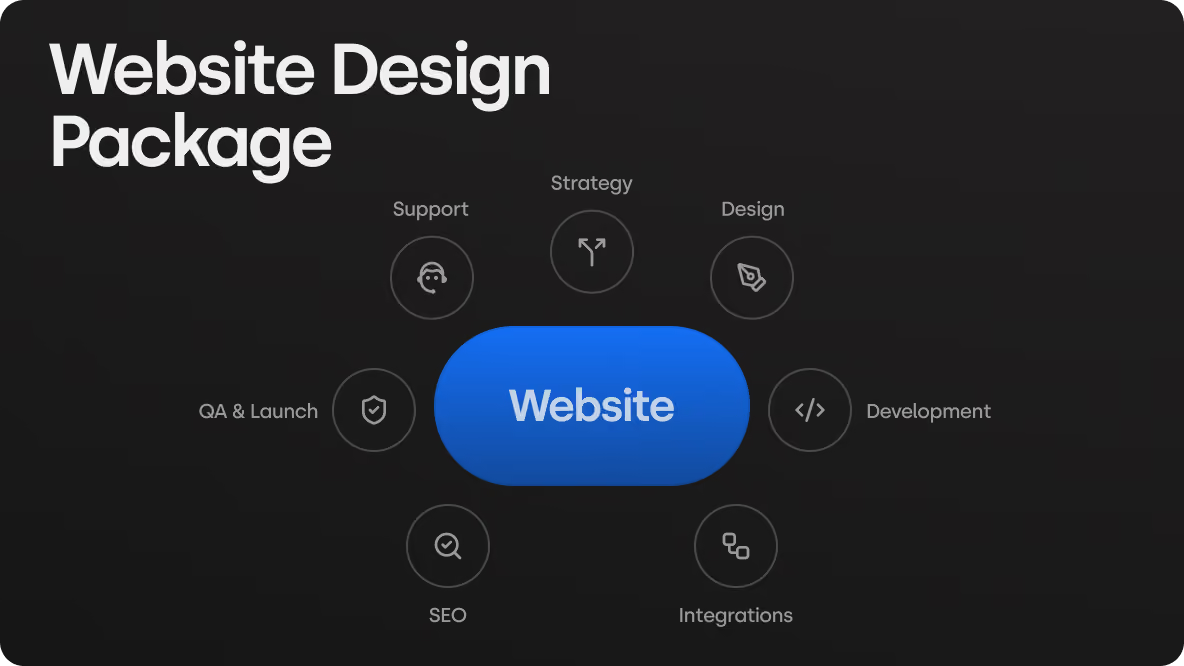
At Skywwward, we design and build Webflow integrations as part of complete digital systems. Whether the right solution is a no-code automation with Make, a native integration, or a fully custom API, we connect Webflow with CRMs, ERPs, payment providers, marketing platforms, and other business systems to create reliable, scalable workflows that fit the way your business operates.
Planning a Webflow project with integrations or automations? Get in touch and let's discuss the right solution for your business.
.avif)


Frequently asked questions
Can Webflow automatically route leads to the right salesperson?
Yes. Form submissions can qualify against set criteria, get assigned to the right AE's calendar, and fire a Slack notification — all without manual review. The routing logic lives in Make, connected to your CRM and Webflow via webhooks. Skywwward has built exactly this for Opencare, taking them from a single-person manual review process to a fully automated pipeline.
Can Webflow handle subscription billing?
Not natively. Webflow's ecommerce is built for one-time transactions. Recurring billing runs through Stripe, which manages the subscription lifecycle and fires webhooks back to Webflow to update CMS records or unlock gated content based on subscription status. Skywwward connects Webflow to Stripe as part of any project that requires it.
What integrations can Skywwward build for a Webflow site?
CRM and sales tools (HubSpot, Salesforce, Pipedrive), automation platforms (Make, Zapier), payment and subscription flows (Stripe, Square, Shopify), email and marketing tools (Mailchimp, Mailgun), analytics and tracking (Google Analytics, Google Tag Manager, Segment), AI services (OpenAI, Claude), data and content sync (Airtable, Google Workspace), calendar and booking automation (Calendly), internal notifications (Slack), recruiting tools (Greenhouse, Lever), and custom API connections for anything outside that list.
How long does it take to build a Webflow integration?
A straightforward Make scenario, form to CRM, CMS item to Slack, takes days. A full lead qualification and routing pipeline like Opencare's took six weeks, covering Salesforce, Calendly, Slack, Mailgun, and global form templates across all landing pages.
What's the difference between using Make and building a custom integration?
Make gives you a visual scenario builder, faster to set up, easier to follow, no server to maintain. A custom build gives you full control over logic, volume, and error handling. Most projects use both: Make for day-to-day automations, custom code for the one workflow too complex or too critical to run visually.
Can Webflow sync content automatically from an external source?
Yes. Through the CMS API, Webflow can receive content pushed from an external database, a headless CMS, a spreadsheet, or any system that can make an HTTP request. New records create CMS items, updates patch existing ones, and a publish call makes them live, all without opening Webflow.