How to Cut Webflow Bandwidth Before Your Plan Changes
Last checked against Webflow's help pages and pricing page on 2 November 2026. Prices can change, so confirm on webflow.com/pricing.
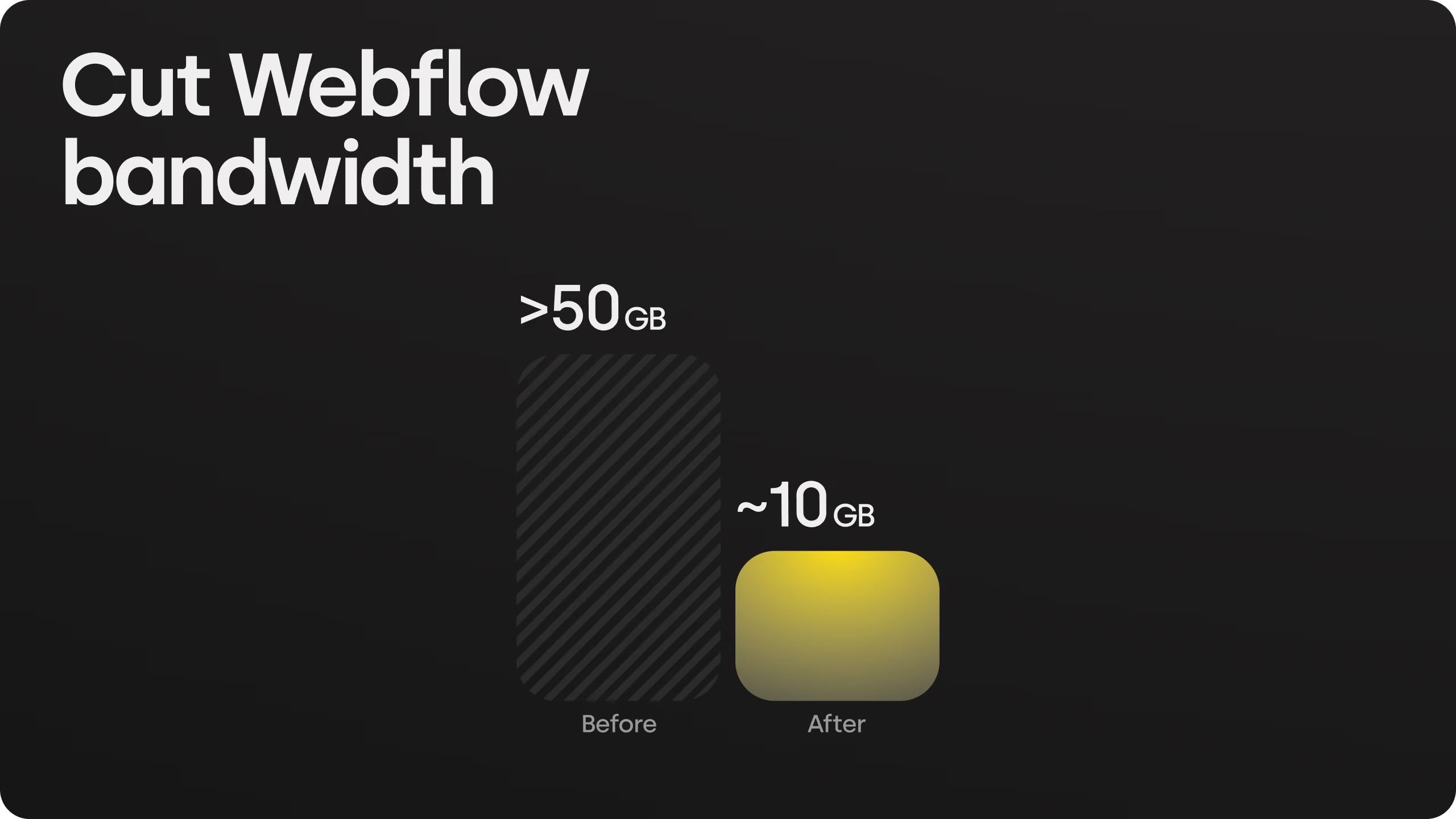
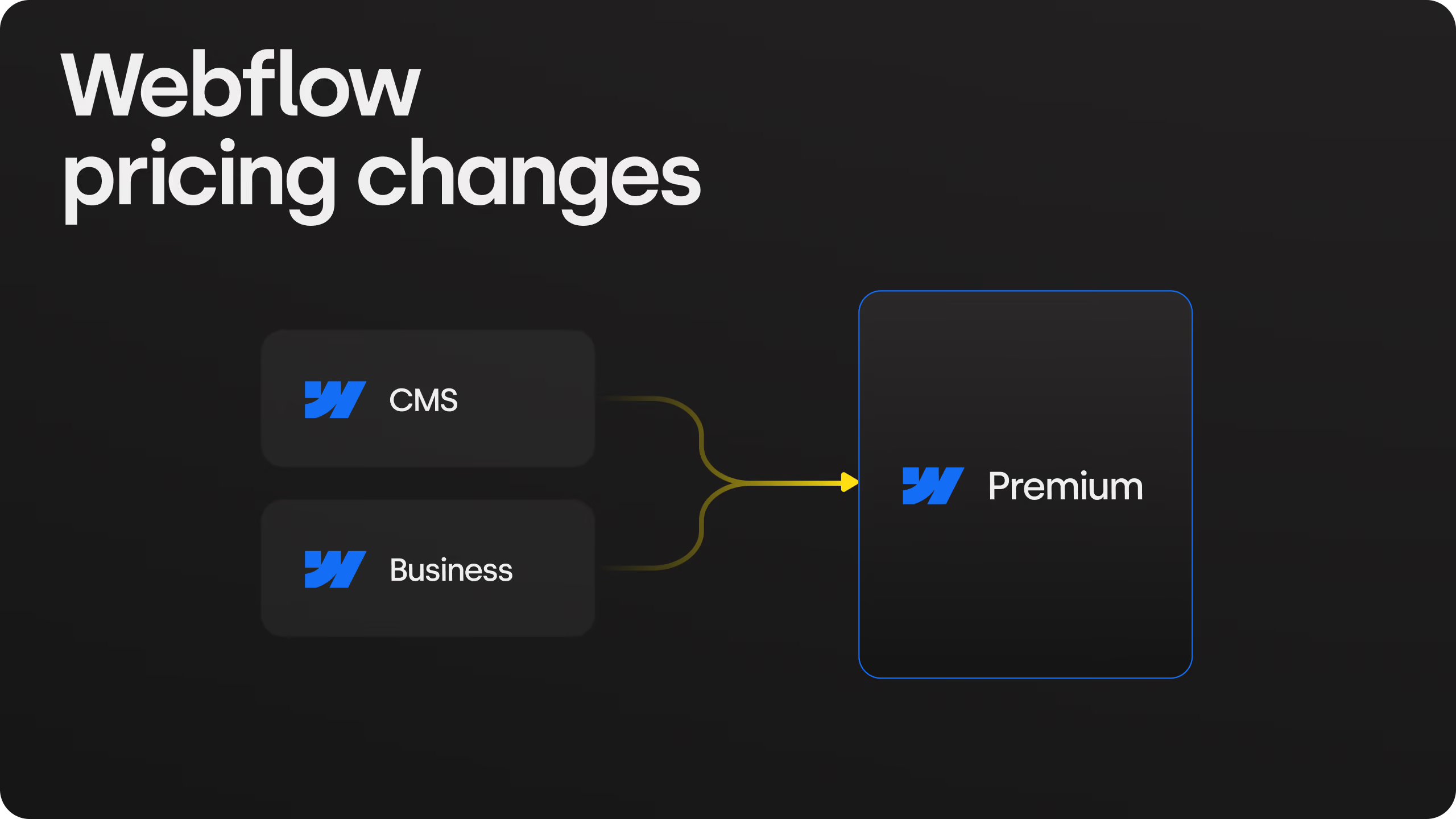
The short version: when Webflow moves agency-hosted and legacy sites to the new plans from 16 November 2026, the included bandwidth on the Premium plan is 50GB a month, down from 100GB on the old Business plan. If your site used more than 50GB in either of its last two billing months, Webflow adds a paid add-on for you automatically, from $20 a month on yearly billing. Most sites can get under the line by fixing images. We took one client from over 50GB to 10GB a month with no change in traffic, in a few hours, using Webflow's own tools. The fix also makes the site faster.
Who this is for: marketing leads and founders who own a Webflow site and want to know whether the bandwidth line will cost them, and what to do about it. The plan change itself is covered in Webflow's November 2026 pricing change: what your site will actually cost. This post is the part about bandwidth.
What bandwidth is, in plain terms
Every time someone opens a page on your site, Webflow sends their browser the page plus every file on it: images, fonts, scripts, videos, PDFs. Bandwidth is the total of all that data in a month.
A rough estimate: monthly visits x pages per visit x average page weight.
- 8,000 visits x 3 pages x 2MB = about 48GB. Just under the Premium limit.
- The same site with 4MB pages = about 96GB. Over the limit, needs the 50GB add-on.
Page weight is the number you control. Visits you want more of, not fewer.
First, find out where you stand
In Webflow, open the site's settings and look at the plan and billing area. Bandwidth used per month is shown there. If you do not have a Webflow login because an agency hosts the site, ask them for the last three months.
Look at the highest month, not the average. Webflow sizes the automatic add-on from your recent peaks (Webflow Help).
Then put each month against the Premium tiers:
| Monthly bandwidth | What you need on Premium | Cost on yearly billing |
|---|---|---|
| Under 50GB | Nothing | $0 |
| 50 to 100GB | +50GB add-on | $20/mo ($240/yr) |
| 100 to 150GB | +100GB add-on | $40/mo ($480/yr) |
| 150 to 200GB | +150GB add-on | $60/mo ($720/yr) |
From webflow.com/pricing, checked 2 November 2026. Monthly billing is 50% more.
If you are under 50GB every month, stop reading. If you are over, or close, the rest of this post is for you.
What eats bandwidth
In the sites we maintain, it is almost always one of these four, in this order.
1. Images. The biggest cause by far. A photo exported from a camera or Figma at 3,000 pixels wide and saved as JPEG or PNG is often 1 to 3MB. On a page with ten of them that is 10 to 30MB per visit before anything else loads. Most of that weight is invisible: the browser shows the image at 600 pixels wide and throws the rest away.
2. Video hosted on Webflow. A background video or an uploaded clip is 5 to 50MB per play. Every visitor who lands on that page downloads it, whether they watch it or not.
3. Downloads. PDFs, brochures, slide decks and press kits served from Webflow count. A 20MB brochure downloaded 1,000 times is 20GB, nearly half the Premium allowance, from one file.
4. Bots. Crawlers and scrapers load pages like visitors. If your bandwidth jumped and your analytics show no jump in human visitors, this is the likely reason.
What we did for Ardecoplus
Ardecoplus designs and builds custom machinery for the leather goods industry, with over 1,000 machines in operation in more than 20 countries. The Webflow site runs in four languages and is built around product pages with photos of the machines. Around 5,000 visitors a month.
The site was already on the Premium plan with its 50GB allowance. Bandwidth had been creeping up for months, then crossed the line, and Webflow sent the notification that the site was over its limit. The next step would have been a paid add-on.
The cause was not hard to find. The product photos had been uploaded at full size, and there were a lot of them. The catalogue PDF, also served from Webflow, was small enough not to matter. Bot protection was already on, so crawlers were not part of it. The four language versions share the same assets, so they did not multiply the problem.
What we did:
- Converted every image to AVIF, using Webflow's own image compression. No external tools.
- Resized where the file was far larger than the space it is shown in.
- Did the same for the CMS images. Product photos live in CMS collection fields, which the Assets panel does not touch. They are compressed separately, from the Collections panel. This is the part most people miss.
Around 500 images. A few hours of work.
Result: from over 50GB a month to about 10GB, with the same traffic. Image weight down by roughly 80%. The site looks exactly as it did before.
One honest note: the PageSpeed score did not move. The hero section on this site has no large images, so the heavy files were never on the critical path for the score. On most marketing sites, where the hero is a 2MB photo, the same work does move it. Here, the gain was the bill: no add-on, no plan jump, and a long way below the limit as traffic grows.
How to do the same on your site
Images first, because that is where the weight is. The rest is in order of how much it usually saves.
Step 1: back up, and find the heaviest files
Webflow's conversion replaces the original file. An AVIF cannot be turned back into the JPEG it came from. So before anything else, download the originals you care about, or make a site backup you can restore. Webflow says the same in its help article (Webflow Help: Image conversion tool).
Then find out what is heavy. Open a page in Chrome, open DevTools, go to the Network tab, filter by Img and sort by size. Do this on the homepage and on the page type you have most of (a product page, a blog post). The top ten files are usually most of the weight. If one image is 4MB, that is your first fix, not the fonts.
Step 2: compress the static images
In the Designer, open the Assets panel and expand it. Hover an asset and tick it, or use Select all. Choose AVIF or WebP, then Compress. The conversion runs in the background and updates every place the image is used on the canvas, so there is nothing to re-link.
Limits worth knowing: the tool handles JPEG, JPG and PNG only; up to 100 assets per request and 10 requests a minute, so a site with 500 images takes a few batches; very large files are better converted one at a time; and if an asset fails to convert, it is usually already as small as it will get. Pick AVIF unless you have a reason not to. It is smaller than WebP at the same quality and every current browser supports it.
One exception: do not convert your OpenGraph image, the one that shows when a page is shared on LinkedIn or Slack. Those platforms do not reliably support AVIF or WebP, and a broken share preview is a bad trade for a few hundred kilobytes.
Step 3: compress the CMS images
Images that live in CMS fields (product photos, blog covers, case study images, team photos) are not in the Assets panel, so step 2 does not touch them. In the Collections panel, open the more options menu on a collection, choose Compress assets, pick the format, and run it. Do this for every collection that holds images. On a content site this is often the bigger half of the saving, and it is the step people skip because they do not know it exists.
Step 4: resize where it is obvious
Compression changes the format, not the dimensions. An image shown at 800 pixels wide does not need to be 3,000 pixels wide in the file. Full-width hero images rarely need more than 2,000 pixels; everything else is usually fine at 800 to 1,200. For most sites this is a handful of files, found in step 1, not the whole library.
Webflow does part of this for you, but only for images placed as image elements. For those it generates smaller variants and serves the right one to each screen size. Background images, set in the style panel, get no variants: every phone downloads the full desktop file. So if a heavy image is a background, either resize it yourself or move it to an image element.
Step 5: republish, then check next month
Conversions apply to the live site only after you publish. Then wait for a full month of usage and compare it to the previous three. If you are still over 50GB, the weight is somewhere other than images: video, downloads or bots, below.
And export new images as AVIF or WebP from the start, so you are not back here in a year.
Video: host it on YouTube, Vimeo, Mux or a video service and embed it. The data then comes from their servers, not your Webflow allowance. For background videos, keep them short, muted, 720p and under 2MB, or replace them with a still image and see whether anyone notices.
Downloads: move large PDFs to Google Drive, Dropbox or your CRM's file hosting and link to them. Or compress them; a 20MB brochure is usually 3MB once the images inside it are optimised.
Bots: turn on Webflow's bot protection and the setting that restricts AI crawlers. Before blocking AI crawlers, decide whether you want your site cited by ChatGPT and Perplexity; blocking them means you will not be. For a site that depends on AI visibility, fix images instead and accept the bot traffic.
What does not move the needle
Advice on this topic tends to list everything that affects page weight as if it all mattered equally. It does not. Fonts, minified code, unused classes and script loading order are measured in kilobytes. A product photo is measured in megabytes. On a site that is over its bandwidth limit, cleaning up fonts and CSS will change the monthly total by well under 1%. Do it for load time, and there is a short list below, but do not expect it to change the bill.
Two things that sound like fixes and are not: deleting unused assets from the Assets panel (a file nobody requests costs no bandwidth, whether it exists or not), and lazy loading (Webflow already lazy-loads images below the fold by default; it saves data for visitors who leave early, which helps, but it does not shrink the files).
The one exception on the small side is a video file that is no longer on any page but is still linked from somewhere, an old email or a sitemap. It is still served. Check the Assets panel for videos you thought were gone.
Small wins, for load time more than the bill
None of these will get a site from 90GB to 50GB. All of them make pages faster, and together they are an hour of work. Do them after the images, not instead of them.
- Upload fonts as WOFF2. If you use a font from Google Fonts, download it, convert it to WOFF2 (the site's own download usually includes it, or use a free converter), and upload it under Site settings, Fonts. One fewer third-party request, no round trip to Google's servers, and the file is a third the size of a TTF or OTF. Load only the weights you use; a site rarely needs more than three.
- Use SVG for logos and icons. A logo exported as a 1,200 pixel PNG is often 100 to 300KB. The same logo as an SVG is a few kilobytes and sharp at every size. Client logo rows are the usual offender.
- Replace GIFs. Webflow serves an animated GIF as-is, and a five-second GIF is easily 5 to 15MB, heavier than a video of the same clip. Convert it to an MP4 and embed it, or to a short Lottie if it is a simple animation.
- Keep Lottie files small. A Lottie exported with embedded raster images can be several megabytes. Ask for vector-only exports, and check the JSON size before placing it in the hero.
- Turn on minification. Site settings, Advanced: minify HTML, CSS and JavaScript. Three toggles. Tens of kilobytes per page, no downside.
- Clean up unused styles and interactions. Style Manager has a Clean up button that removes classes nothing uses; the Interactions panel has the same for animations with no trigger. On a site that has been edited for a few years, this trims the CSS and JS files meaningfully.
- Check the Assets panel for forgotten video. Covered above, but it belongs on this list: an uploaded video nobody uses but something still links to is the one small item that can be a large number.
If you only have ten minutes: WOFF2 fonts, SVG logos, the three minify toggles. Then stop and go compress the images.
What this is worth
Say a site is at 90GB a month. On Premium that is the 50GB add-on, $240 a year on yearly billing. Cutting image weight by half, which is normal for a site that has never been optimised, brings it to roughly 45 to 55GB. At the low end the add-on disappears. Cut by 80%, as above, and you are at 18GB with room to triple your traffic before the question comes back.
That is not a large sum. The reason to do it anyway is that page weight is also the single biggest factor in load time, and load time affects search rankings and conversions. The bandwidth bill is the prompt. The faster site is usually the payoff.
Want us to check?
We are Skywwward, a Webflow Premium Partner studio. If you want to know what your site will pay after 16 November, or you are over 50GB and want it fixed, we can check your plan, billing cycle and three months of bandwidth, and tell you which files are responsible. Get in touch.
Related reading:
- Webflow's November 2026 pricing change: what your site will actually cost: the plan mapping and three worked annual totals.
- What's included in a website design package: what ongoing maintenance should cover.
Sources
- Webflow Help: Updated pricing and simplified plans for May 2026, read 2 November 2026
- Webflow pricing page, read 2 November 2026
- Webflow Help: Image conversion tool, read 2 November 2026


Frequently asked questions
How much bandwidth does Webflow Premium include?
50GB a month. The old Business plan included 100GB. If your site used more than 50GB in either of its last two billing months, Webflow adds a bandwidth add-on automatically when your plan changes.
How much does extra bandwidth cost on Webflow?
From $20 a month for an extra 50GB on yearly billing, or $30 a month on monthly billing. Tiers go up to 2.5TB a month in total.
Does Webflow count bandwidth from bots and crawlers?
Yes. Any request served by Webflow's CDN counts, whether it came from a person or a crawler. Webflow has bot protection and a setting to restrict AI crawlers if that is the problem.
Does converting images to AVIF change how the site looks?
No, at normal quality settings. AVIF reaches the same visible quality as JPEG at a fraction of the file size. All current browsers support it.
Do images in Webflow CMS collections need to be converted separately?
Yes. Images stored in CMS fields are not in the Assets panel, so compressing there does not touch them. In the Collections panel, open a collection's more options menu, choose Compress assets, and pick AVIF or WebP. Run it for every collection that holds images.
Does Webflow keep the original image after converting to AVIF?
No. The conversion replaces the original file, and an AVIF or WebP cannot be converted back. Download the originals or make a site backup before you convert, and leave your OpenGraph image as it is, because share previews on LinkedIn and Slack do not reliably support the new formats.
Do background images use more bandwidth than image elements in Webflow?
Often, yes. Webflow generates smaller variants of images placed as image elements and serves the right size to each screen. Background images set in the style panel get no variants, so every phone downloads the full desktop file. Move heavy backgrounds to image elements or resize them by hand.
Will reducing image weight improve my PageSpeed score?
Usually, if the large images are in the first screen a visitor sees. If they are further down the page, as on the Ardecoplus site, the score may not change even though the bandwidth bill does.