WordPress to Webflow Migration for SaaS and B2B Sites: 10 Steps That Keep Your Rankings

Last updated 24 September 2026. First published 27 May 2026.
Migrating from WordPress to Webflow does not inherently hurt SEO. In many cases, the opposite is true: Webflow’s cleaner HTML structure, Cloudflare-powered hosting, and reduced plugin overhead can improve page speed, Core Web Vitals, and overall technical performance after launch. Getaround reported a 55% increase in organic search sessions following migration, while Rakuten SL measured a 27.9% reduction in bounce rates after moving to Webflow.
The risk is execution. Across analyzed migration discussions, roughly one-third of comments carried either cautionary or negative sentiment around WordPress-to-Webflow migrations, with the highest concentration coming from operators managing SEO dependent, lead-generating websites. The concern was rarely Webflow’s SEO capability itself. It was whether redirects, metadata, canonicals, internal linking, and indexation were being handled with enough technical rigor to preserve existing rankings and traffic during the transition.
This guide is written for SaaS and B2B marketing sites: 15 to 150 pages, a blog that carries organic traffic, and forms that feed a CRM. It walks through the migration in 10 stages, from the pre-migration audit and redirect map to CMS rebuild, metadata transfer, launch sequence and the first 90 days of monitoring. Near the end there is a cost and timeline table by site size, and a short section on when to stay on WordPress.
Why WordPress to Webflow Migrations Put SEO at Risk
The platform switch itself doesn't hurt rankings. Webflow's output is clean HTML on a global CDN, which tends to improve Core Web Vitals compared to a plugin-heavy WordPress installation. The SEO risk lives in execution gaps.
Search engines track a web of signals tied to your specific URLs: backlink equity pointing to those exact paths, indexation history, crawl patterns, and associated metadata. When you change platforms without preserving that continuity, Google sees a new, less-established site, not an improved version of the one it already trusted.
The three failure points that cause traffic loss in almost every poorly-executed migration:
- URL changes without 301 redirects. Every old WordPress URL that doesn't have a matching redirect becomes a permanent 404. Google drops that page from its index and the link equity accumulated over years disappears.
- Lost metadata. WordPress SEO plugins like Yoast and Rank Math store custom meta titles and descriptions separately from the content. They don't migrate automatically. If these fields aren't manually transferred to Webflow, Google re-indexes your pages with auto-generated metadata and your click-through rates drop.
- Broken canonicalization. If your WordPress site had inconsistencies in www vs. non-www, HTTP vs. HTTPS, or trailing slashes (and most do), those issues follow you unless you configure Webflow's global canonical URL correctly before launch.
A well-executed migration doesn't just preserve rankings. Webflow's infrastructure is genuinely better for SEO than a plugin-heavy WordPress setup. Clean HTML output, Cloudflare CDN globally, no plugin overhead degrading Core Web Vitals. Properly migrated sites often see measurable improvements in page speed, LCP, and overall technical performance within 2–3 months after launch, with gains continuing to compound over time. Getaround moved their marketing site to Webflow and saw organic search traffic double. Rakuten SL measured a 27.9% drop in bounce rates after the switch. But those results depend entirely on how cleanly the migration itself is executed.
The community sentiment around migration reflects the same pattern. Across 50+ analyzed comments from r/webflow migration discussions from WordPress to Webflow, one in three is a warning, not because migration is impossible, but because the cost of getting it wrong is asymmetric. The community is predominantly helpful (42%) but a significant 33% of responses carry either caution or outright negativity. One in three comments is a warning. That's the baseline emotional register of this topic, not hostile, but far from confident. The 25% neutral slice is mostly off-topic comments and OP acknowledgements.
WordPress vs. Webflow: What Actually Changes
Before diving into the process, it's worth being precise about what you're moving between. The platforms are fundamentally different in how they handle hosting, maintenance, and SEO tooling.
WordPress's CMS market share dropped below 43% in early 2026, the first decline since W3Techs began tracking in 2011. Active WordPress domain counts fell from 5.8 million to 4.67 million between February and July 2025, a 19% contraction in five months. The companies driving that shift aren't moving to lower-cost alternatives. They're moving to managed platforms specifically to eliminate the plugin maintenance overhead and developer dependency that WordPress accumulates at scale.
PageSpeed scores jumping from 60–70 to 90–95 purely from the platform switch are documented across multiple migrations. That performance delta compounds directly into Core Web Vitals scores, a confirmed ranking factor.
For B2B SaaS and fintech sites, typically 20–150 pages, a blog, and integrations with HubSpot or similar, the total cost of ownership over three years almost always favours Webflow once you factor in plugin licenses, developer maintenance time, security monitoring, and hosting upgrades. For a worked example of the CMS and hosting differences on a trilingual, multi-domain site, see the Hoovest case study.
The Migration Process: Step by Step
Before we outline the steps, some context on what the Webflow community actually talks about when someone asks how not to lose SEO during a migration from Wordpress to Webflow. The chart below shows what the community talks about, ranked by how often it comes up.
Redirects dominate. Not as one of several priorities but as the only thing the community treats as non-negotiable. Every other theme has detractors or people saying it depends. Nobody debates redirects. The second most mentioned theme isn't even a technical step, it's "hire an expert". Experts who run these migrations for a living consistently recommend professional execution when organic traffic is the revenue channel. Not just because it's complex, but also because you get one shot at a migration and the cost of getting it wrong is high.
The ten steps that follow address every theme in this chart, in the order execution demands them.
Step 1: Pre-Migration SEO Audit (Before You Touch Webflow)
Before a single page is built in Webflow, you need a complete inventory of your WordPress site as it stands. Use Screaming Frog, Ahrefs, or Semrush to crawl every URL and export:
- All live URLs with HTTP status codes
- Meta titles and descriptions for every page
- H1 tags and heading structures
- Canonical tags
- Internal link structure
- Indexed pages from Google Search Console
- Top-performing pages by organic traffic
- Pages with external backlinks (prioritise these)
Export your current keyword rankings and organic traffic data. This becomes your baseline, the benchmark against which you'll measure migration success at 30, 60, and 90 days post-launch.
Also document every active WordPress plugin and what it does. WordPress sites commonly run 15–30 plugins covering SEO, forms, caching, security, and analytics. Each one represents functionality that needs a Webflow equivalent, a third-party integration, or a conscious decision to drop. Missing one means a broken form, a dead tracking pixel, or a CRM integration that silently stops passing leads.
The output of this phase: A spreadsheet with every URL, its metadata, its SEO performance, and the name of whoever owns each migration decision.
Step 2: Build Your Redirect Map Before Anything Else
The redirect map is the single most important document in the entire migration. Build it before you design a single page in Webflow.
Create a spreadsheet with these columns:
The guiding principle: keep URLs identical wherever possible. Stable slugs mean no redirects needed, no loss of link equity, and simpler QA. Every URL you change is a redirect you have to build, test, and monitor.
Where changes are unavoidable (Webflow's CMS collections often add a folder to blog post URLs, such as a /blog/ prefix where WordPress had none), every changed URL needs a 301 redirect mapping to its new destination.
URL types that consistently get missed:
- Category archive pages (/category/web-design/)
- Tag pages (/tag/webflow/)
- Author archive pages (/author/name/)
- Paginated pages (/blog/page/2/, /blog/page/3/)
- Attachment URLs (WordPress creates individual pages for uploaded media)
- Feed URLs (/feed/, /comments/feed/)
- Media files with external backlinks (PDFs, images hosted on your domain)
For directory-level changes, Webflow supports wildcard redirects using capture groups. If you're moving an entire folder structure:
- Old path: /resources/(.*)
- New path: /insights/%1
This single rule redirects every URL under /resources/ to its equivalent under /insights/, rather than creating hundreds of individual redirect entries. Keep your total redirect count under Webflow's recommended limit of 1,000 for optimal performance.
Step 3: Export WordPress Content and Prepare It for Webflow
WordPress exports content in XML format by default. Webflow imports require CSV files.
The cleanest approach is WP All Export, which lets you export posts, pages, and custom post types directly as CSVs with exactly the fields you specify.
Export separate CSV files per content type, blog posts, case studies, team members, each as its own file. For each export, include:
- Title, slug, body content, excerpt
- Meta title and meta description (from Yoast/Rank Math)
- Featured image URL (absolute, full domain)
- Publish date, author
- Categories and tags (formatted as semicolon-separated values for multi-reference fields, e.g. "SEO;Migration;Webflow")
Before importing, clean the CSV files. WordPress content exports with baggage:
- Strip all shortcodes ([gallery], [contact-form-7], [embed]); they don't render in Webflow's Rich Text field
- Remove inline styles injected by Elementor, Divi, or other page builders
- Normalise special characters and encoding issues
- Confirm all image paths are absolute URLs so Webflow can fetch and host them on its CDN during import
Images need separate handling. Download your entire WordPress media library, optimize images for web (compress, convert to WebP where practical), and upload to Webflow's Asset Manager. Update image references in your CSV to point to the new Webflow asset URLs.
Include SEO metadata in your export. Confirm your CSV has columns for meta title, meta description, and URL slug for every item. These will be mapped directly to Webflow's SEO fields.
Step 4: Set Up Webflow CMS Collections
Create a Webflow CMS collection for each content type from your WordPress inventory. For a typical B2B marketing site:
Blog Posts collection, minimum fields needed:
Import taxonomy collections first (Categories, Tags, Authors), then import your main content and map references. Webflow's reference matching is case-sensitive, category names in your main CSV must exactly match the names in your taxonomy collection.
Collection item limits by plan:
- Premium plan: 20,000 total CMS items across all collections
- Enterprise: over 1 million total CMS items per site on eligible Enterprise plans
As of Webflow’s May 2026 pricing update, the previous CMS and Business plan limits are no longer the safest figures to use. Webflow’s updated self-serve Premium plan includes 20,000 CMS items, replacing the older structure where CMS and Business had lower separate item limits. As of January 2026, Webflow’s next-generation CMS also supports over 1 million total CMS items per site on eligible Enterprise plans, with up to 1 million items in a single collection. If your content library is large, batch your imports and check limits before you start. CMS items include every record in every collection, not just blog posts: case studies, team members, authors, categories, tags, resources, and anything else you import.
After importing, spot-check 10–15 items per collection. Rich text content from WordPress sometimes requires manual cleanup: block editor formatting, embedded shortcodes, and table markup don't always translate cleanly into Webflow's Rich Text renderer.
Skywwward builds the CMS architecture as part of every migration; see website development.
Step 5: Transfer All SEO Metadata Manually
This step is where migrations most commonly cut corners. Webflow does not automatically inherit your WordPress SEO plugin settings. Every page and CMS item needs its SEO fields populated.
For every static page:
- SEO title (match or improve on your WordPress meta title, keep priority page titles identical to avoid click-through rate disruption)
- Meta description
- Open Graph title, description, and image
- Canonical URL
For CMS collection templates:
Use Webflow's dynamic fields to bind the SEO title and meta description to the fields you created in Step 4. Set up the template once and it applies across every collection item.
Global Canonical URL (configure this before launch):
In Webflow: Site Settings > SEO > Global Canonical Tag URL
Set this to your production domain (e.g. https://yourdomain.com). If you leave this blank, Webflow publishes no rel="canonical" tag on any page, a technical SEO error that allows Google to choose its own canonical, which may not be the version you want indexed.
Note: if your site had www vs. non-www inconsistencies in WordPress, this is where you resolve them. Pick one version, set it as the global canonical, and ensure your DNS forces a redirect to that version.
Schema markup (rebuild it manually):
WordPress plugins like Yoast generate Article schema, Organization schema, Breadcrumb schema, and FAQ schema automatically. In Webflow, schema is added via custom code in Page Settings > Custom Code > Head Code using JSON-LD format.
Example Article schema for a blog post template:
<script type="application/ld+json">
{
"@context": "https://schema.org",
"@type": "Article",
"headline": "{{wf {"path":"name"} }}",
"datePublished": "{{wf {"path":"published-on","type":"Date"} }}",
"author": {
"@type": "Organization",
"name": "Skywwward"
}
}
</script>
Validate all schema implementations with Google's Rich Results Test before launch. Schema increasingly affects visibility in AI-powered search features, Google AI Overviews, Perplexity citations, and ChatGPT web browsing all surface structured data.
Step 6: Rebuild Pages and Configure Technical SEO
Rebuilding the design in Webflow is where most agencies focus, but technical SEO configuration needs equal attention.
Heading structure: Every page should have exactly one H1, and heading hierarchy (H2, H3) should follow semantic logic. Webflow's designer gives you full control here. Changing H1s on high-performing pages introduces avoidable volatility.
XML Sitemap: Enable in Site Settings > SEO > Sitemap. Confirm all important pages appear in the generated sitemap at yourdomain.com/sitemap.xml. Exclude any pages you don't want indexed (thank-you pages, utility pages, staging variants).
Internal links: Update all internal links to point to the new Webflow URLs. Don't leave internal links relying on redirects, that adds unnecessary latency and muddies crawl paths. Pages with deep click depth (many clicks from homepage) may be crawled less frequently; bring important pages closer to the surface.
Robots.txt: Webflow generates a robots.txt automatically. Before launch, verify it's not blocking Googlebot on any pages you want crawled. Staging domains (.webflow.io) are blocked by default, confirm production is not.
HTTPS and domain configuration Webflow handles SSL automatically. Confirm the canonical domain is configured correctly in Site Settings > Publishing. This determines whether www or non-www is canonical, and ensures the non-canonical version permanently redirects to the preferred one.
Page speed Run your top 10 pages through Google PageSpeed Insights before launch. Webflow staging typically scores significantly better than WordPress on LCP and CLS, but oversized images or excessive third-party scripts can create regressions. Optimise before going live, not after.
Indexability check Crawl the staging site with Screaming Frog. Verify no pages have accidental noindex tags. This is a common issue when staging settings follow pages to production. Compare the crawled page count against your content inventory. If you want this audited before launch, that is part of our SEO service.
Step 7: Implement 301 Redirects in Webflow
With your redirect map complete and your Webflow build ready, implement every redirect before DNS cutover.
In Webflow: Site Settings > Hosting > 301 Redirects
For large redirect lists, use Webflow's bulk CSV import rather than entering rules manually. Format your CSV with two columns: old-path and new-path. Paths should be relative (starting with /), not absolute URLs.
Redirect rules that prevent common failures:
- Use 301 (permanent), never 302 (temporary) for migration redirects. 302s tell Google the move is temporary and don't transfer link equity.
- Avoid redirect chains. If A previously redirected to B in WordPress and B now redirects to C in Webflow, map A directly to C. Each additional hop reduces equity transfer and adds latency.
- Avoid redirect loops (A → B → A). Crawlers will abort and return an error.
- If a conflicting URL already exists in Webflow at the same path as your redirect source, you'll need to delete the page, save it as a draft, or change its slug before the redirect will activate.
For wildcard/folder-level redirects:
- Old path:
/old-folder/(.*) - New path:
/new-folder/%1
The (.*) captures everything after the folder name; %1 inserts it into the destination path. This handles entire folder moves with a single rule.
Pre-launch redirect QA: Test at minimum your top 50 URLs by organic traffic. For each, confirm it returns a 301 Moved Permanently response to the correct destination, not a 302, not a 404, and not a redirect chain. Use curl -I https://olddomain.com/old-path or a tool like httpstatus.io for bulk testing.
Step 8: Replace WordPress Plugins With Webflow Equivalents
One of the clearest operational advantages of Webflow is eliminating plugin dependency. WordPress sites running 15–30 plugins carry constant maintenance overhead: security patches, compatibility breaks on updates, performance degradation from plugin conflicts.
Here's how the most common WordPress plugins map to Webflow:
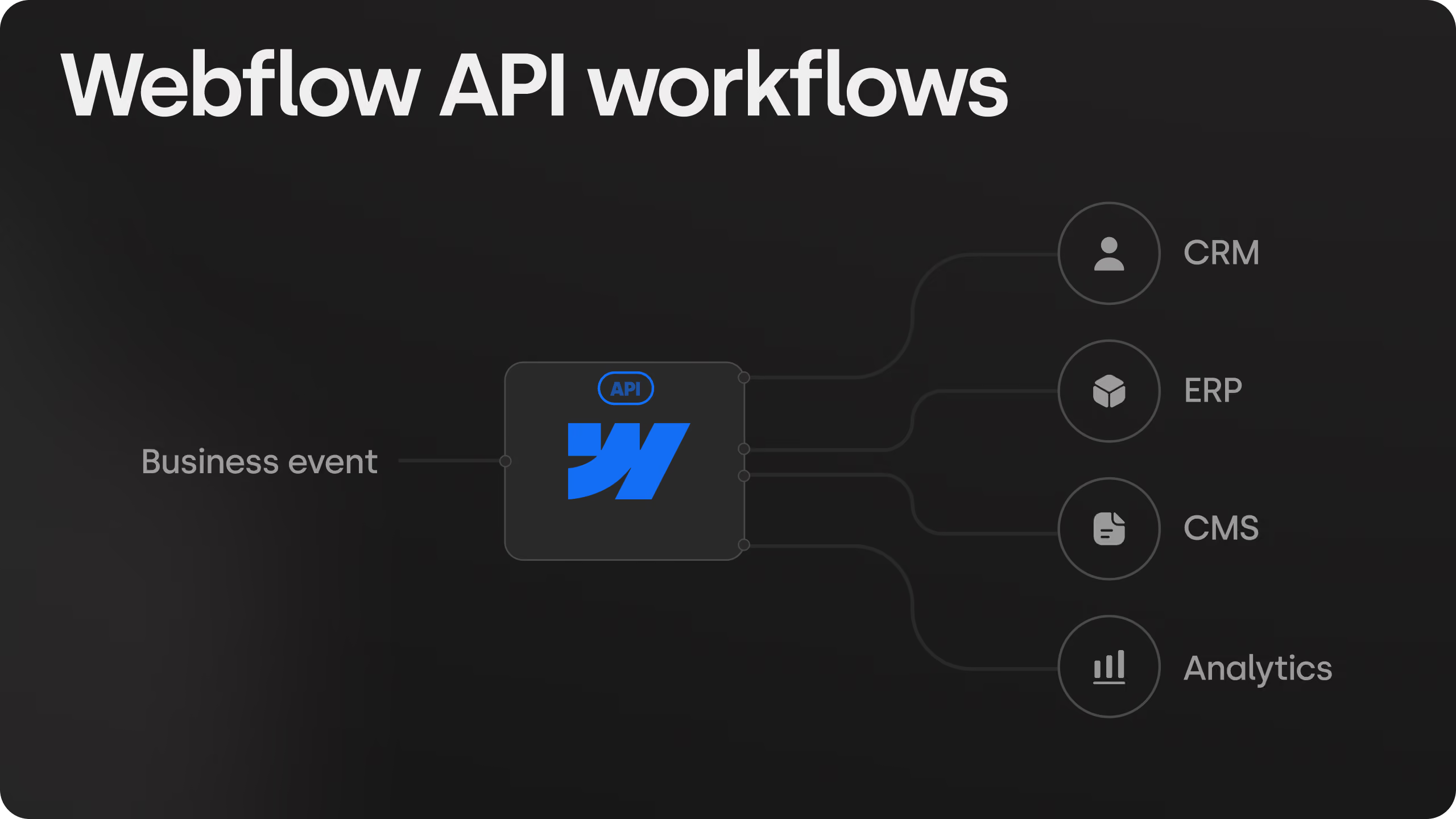
The typical outcome: a WordPress site with 20+ plugins becomes a Webflow site with 2–3 third-party integrations. That's a meaningful reduction in attack surface, maintenance overhead, and page weight. For CRM connectors, Make.com scenarios and Webflow API work, see integrations.
Step 9: Launch With a Controlled Sequence
Launch is not the finish line. It's where the real monitoring begins.
Step 10: Post-Launch Monitoring (First 90 Days)
Expect some volatility in the first two weeks. A 10–20% traffic fluctuation is normal as Google recrawls and reindexes your site on the new infrastructure. If the drop exceeds 30% and persists past week three, investigate immediately, the most likely cause is missing redirects or misconfigured canonicals.
Daily for the first two weeks:
- Check Google Search Console > Coverage for new 404 errors
- Add 301 redirects for any new 404s same day
Weekly for weeks 3–12:
- Compare organic traffic to pre-migration baseline in GA4
- Track keyword positions for your priority pages
- Review Core Web Vitals in Search Console > Page Experience
- Audit internal links periodically as new content is published
Healthy migration indicators at week 4:
- Organic traffic within 15% of pre-migration baseline
- 301 redirects returning 3xx status codes, not 4xx
- Coverage errors below 10 new per day
- LCP under 2.5s on key landing pages
Red flags requiring immediate action:
- 404 spike above 50 new URLs/day → missing redirect coverage
- Traffic drop over 30% persisting past week 3 → metadata or canonical issue
- Google re-indexing old URLs without redirects → redirect chain or DNS propagation issue
For pages with strong external backlinks, proactively contact the linking domains after launch and request they update the link to your new URL. 301 redirects preserve equity, but a direct link is cleaner and more durable.
Business sentiment around migrating from WordPress to Webflow
The business sentiment around migrating from WordPress to Webflow followed a clear pattern across the analyzed discussions: caution increased proportionally with business dependency on organic search.
Threads involving personal websites and beginner creators generated the highest volume of dismissive reactions, but also the lowest informational depth. Responses were typically broad opinions (“just stay on WordPress”) with limited technical reasoning or migration experience behind them.
By contrast, discussions involving technical B2B teams and SEO dependent businesses shifted significantly toward execution risk. The dominant themes became redirect architecture, indexation control, Core Web Vitals, canonical management, and migration sequencing.
The highest concentration of cautionary responses appeared in discussions started by non-technical operators responsible for lead-generating websites. In those threads, practitioners rarely questioned Webflow itself. The concern was overwhelmingly execution-related: whether the migration process was being handled with sufficient technical rigor to preserve rankings, traffic stability, and commercial performance during the transition.
Common Mistakes That Kill SEO in WordPress to Webflow Migrations
Redirecting everything to the homepage. This is the single most destructive shortcut. A 301 to / tells Google that every old URL is now the homepage, which makes no sense semantically. It wastes page-level relevance and usually results in significant keyword ranking drops. Redirect each old URL to its closest topical equivalent.
Launching before content is complete. Google indexes a worse version of your site during the critical recrawl window immediately after launch. Every page should have complete copy, all images, and all metadata populated before DNS switches.
Forgetting non-blog WordPress URL types. Category archives, tag pages, author archives, paginated pages, and attachment URLs consistently get missed. These pages often have internal link equity and sometimes external backlinks.
Rewriting content during migration. Changing H1s, restructuring page hierarchy, and rewriting body copy at the same time as changing platforms multiplies your variables. If traffic drops, you won't know whether it was the migration or the content change. Migrate first. Optimise after the site stabilises.
Skipping schema markup. Plugins handled this automatically in WordPress. In Webflow it's manual, which means it gets skipped. Schema increasingly determines visibility in AI search surfaces, not just traditional blue-link results.
Deleting the WordPress site immediately. Keep it accessible (non-public) for at least 90 days post-launch. Redirect gaps, missing images, and content discrepancies surface with real traffic, and you need a reference point to diagnose and fix them.
What a WordPress to Webflow Migration Costs
Prices below are what we charge for migration work, not a market survey. They cover the process in this article: audit, redirect map, CMS architecture and import, metadata transfer, technical SEO setup, QA, launch and 30 days of post-launch monitoring. Redesign, new copy and new integrations are quoted separately.
Three things move the price more than page count: how many CMS collections the content needs, how much of the blog content requires manual cleanup after import (page-builder markup, shortcodes, embedded tables), and how many external systems the forms and CMS talk to. A 40-page site with a clean blog and native forms is a small project. A 25-page site with 400 posts built in Elementor and a HubSpot dependency is a medium one.
Adding a redesign to the migration typically adds 2 to 4 weeks and 40 to 60 percent to the price, because every page is rebuilt from a new design rather than recreated from the old one. If organic traffic matters, migrate first and redesign once rankings have settled.
When to Stay on WordPress
Webflow is the wrong move for some sites. Stay on WordPress, or look at a different platform, if any of these apply:
- WooCommerce with complex inventory, variants or fulfilment logic. Webflow Ecommerce is simpler than WooCommerce; Shopify is the usual destination for stores, not Webflow.
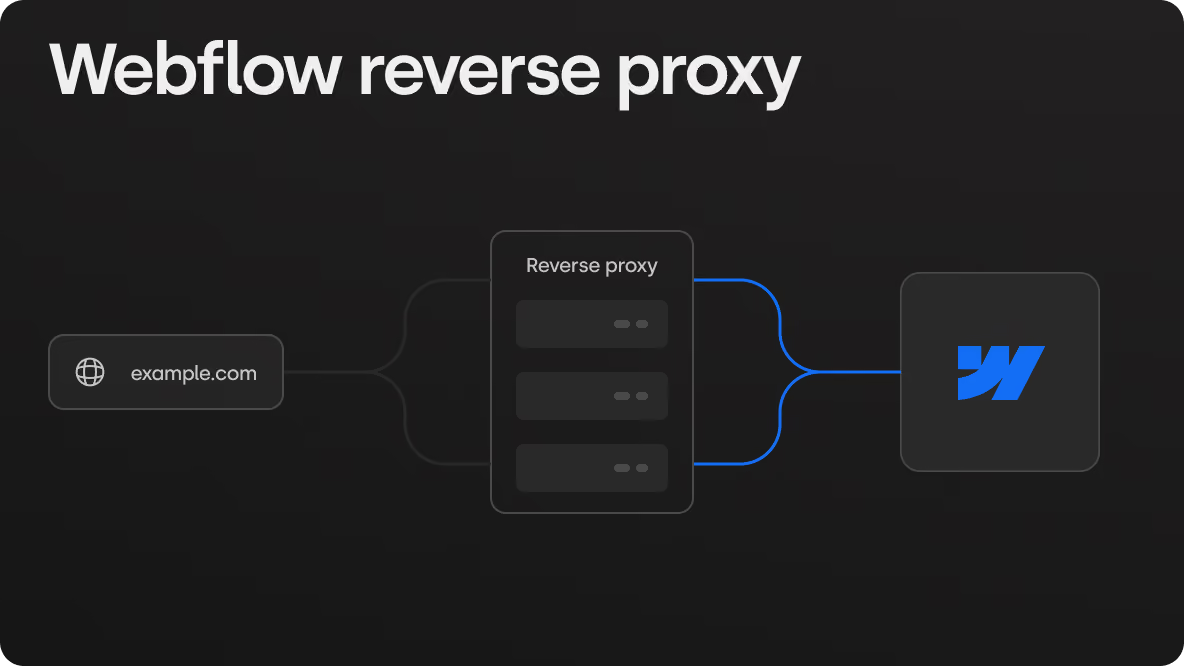
- Custom PHP or database logic the site depends on, such as calculators tied to a backend, user accounts with custom permissions, or content generated from a database. Some of this can move to Webflow Cloud or a reverse proxy setup, but it is a rebuild, not a migration.
- A compliance requirement to self-host or to keep data in a specific region. Webflow hosts on its own infrastructure and does not offer single-region hosting on standard plans.
- Tens of thousands of CMS items. The Premium plan caps at 20,000 items; above that you need Enterprise.
- Nobody will edit the site after launch and the current setup works. A migration is not worth the risk if the only problem is that WordPress feels old.
If none of these apply, the migration is usually a clear improvement in speed, maintenance load and editing workflow.
WordPress to Webflow Migration: The Complete Pre-Launch Checklist
Conclusion
A WordPress to Webflow migration done right doesn't cost you rankings. It compounds them.
The platform switch itself is the easy part. Webflow's infrastructure, clean HTML output, Cloudflare CDN, no plugin overhead, gives migrated sites a structural performance advantage that directly translates to better Core Web Vitals, faster page loads, and improved organic visibility over time. The companies that see those results are the ones that treated the migration as an SEO project from day one, not a design project with a checklist attached.
The companies that lose rankings almost always make the same small set of mistakes: missing redirects on non-obvious URL types, metadata that never made it to Webflow, a canonical configuration that was never set, or a WordPress site deleted before the gaps surfaced. Every one of those mistakes is preventable with the right process. What separates a migration that holds rankings from one that tanks them isn't technical expertise alone, it's discipline. The redirect map built before anything is designed. The metadata audit completed before DNS switches. The 90-day monitoring window treated as part of the project, not an afterthought.
For sites with under 30 pages and simple integrations, this guide gives you everything you need to execute in-house. For sites where organic search is a primary acquisition channel, 50+ pages, meaningful traffic, a CMS with hundreds of posts, the calculus is different. Missing redirects don't announce themselves. Metadata gaps don't trigger alerts. Rankings erode quietly over weeks, often after the team has moved on. You get one launch window, and Google's recrawl happens on its own timeline regardless of whether you're ready.
If you are planning a WordPress to Webflow migration and want the process above run for you, we handle the full scope: audit, redirect mapping, CMS architecture, SEO transfer, launch and 30 days of post-launch monitoring. Pricing by site size is in the table above. Book a 30-minute call and we will scope it.
Changelog. September 2026: added cost and timeline by site size, added "When to Stay on WordPress", updated CMS item limits to the May 2026 Premium plan, corrected timelines in the FAQ. May 2026: first published.
.avif)

Frequently asked questions
Will I lose SEO rankings if I migrate from WordPress to Webflow?
Not if the migration is executed correctly. Rankings are preserved through three non-negotiable steps: a complete 301 redirect map covering every indexed URL, manual transfer of all meta titles and descriptions to Webflow, and correct canonical configuration before launch. Most ranking losses during migrations are execution failures, not platform failures. Webflow is fully capable of supporting strong organic performance and its infrastructure often improves Core Web Vitals scores after migration, which compounds into better rankings over time.
How long does a WordPress to Webflow migration take?
For a small site (up to 15 pages, a blog under 50 posts), 2 to 3 weeks from audit to launch. For a medium site (15 to 50 pages, 50 to 300 posts, forms connected to a CRM), 3 to 5 weeks. Large sites with 50+ pages, multiple CMS collections, integrations or multi-language setups run 6 to 10 weeks. Redirect mapping and QA take longer than teams expect: a 300-post blog produces hundreds of redirect entries that each need to be built and tested. A redesign done at the same time adds 2 to 4 weeks. Full cost and timeline by site size is in the table above.
What is the difference between Webflow and WordPress?
The core difference is operational. WordPress is an open-source platform you self-host and extend through plugins: flexible, but requiring constant maintenance, security patching, and developer involvement for most changes. Webflow is a managed SaaS platform with hosting, CDN, SSL, and SEO tooling built in. There are no plugins to update or break. Marketing teams can publish pages, update content, and manage CMS items without developer tickets. From an SEO standpoint, both platforms support full control over meta tags, canonicals, sitemaps, and redirects, but WordPress requires plugins to manage these, while Webflow handles them natively.
Can Webflow replace WordPress?
For most sites, yes: company sites, SaaS marketing pages, fintech landing pages, content-driven blogs. Webflow covers everything WordPress handles for those use cases: CMS, SEO, forms, integrations, and performance, without the plugin dependency. The cases where WordPress remains the stronger choice are sites requiring extensive custom backend logic, WooCommerce stores with complex inventory management, or platforms where full infrastructure ownership is a compliance requirement. For straightforward marketing and content sites, Webflow is a direct replacement with meaningful operational advantages.
What happens to my WordPress plugins when I migrate to Webflow?
Each plugin's function needs a Webflow equivalent or a deliberate decision to drop it. Most of what WordPress plugins handle (SEO configuration, caching, security, redirects, basic forms) is covered natively by Webflow's platform. The remainder gets replaced by 2–3 lightweight third-party integrations. A WordPress site running 20+ plugins typically becomes a Webflow site with 2–3 integrations. The main exceptions are complex CRM connectors, e-commerce functionality, or custom PHP logic that needs to be rebuilt or replaced with a dedicated integration.
How do 301 redirects work in Webflow?
In Webflow, 301 redirects are managed in Site Settings > Hosting > 301 Redirects. You can add them manually one by one or bulk-import via CSV; the CSV approach is recommended for any migration with more than a handful of redirects. Each redirect entry takes a relative old path (e.g. /old-page) and a relative new path (e.g. /new-page). Webflow also supports wildcard redirects using capture group syntax: setting the old path as /blog/(.*) and the new path as /articles/%1 will redirect every URL under /blog/ to its equivalent under /articles/ with a single rule. One known issue: wildcard redirects in Webflow can behave inconsistently, so always test a representative sample of URLs under each wildcard rule before launch, not just one.
How long does it take to recover from a bad migration?
Recovery timelines vary significantly based on what went wrong and how quickly it was caught. If missing redirects or metadata gaps are identified and fixed within the first week post-launch, most sites return to baseline within 4–8 weeks. If problems are left unaddressed, or only discovered months later, recovery is substantially longer. The average domain migration ranking recovery takes over 500 days when issues aren't caught early. This is why the 90-day post-launch monitoring window in this guide isn't optional: the faster you catch problems, the faster you recover.
Do I need to resubmit my site to Google after migrating to Webflow?
Yes. After launch, submit your new XML sitemap to Google Search Console immediately: go to Sitemaps and add yourdomain.com/sitemap.xml. Webflow generates this automatically once the sitemap is enabled in Site Settings > SEO. Also use the URL Inspection tool to manually request indexing for your 10–15 most important pages. This doesn't force Google to index your site faster, but it signals that the pages are ready to be crawled and typically accelerates the process compared to waiting for Google's natural crawl cycle.
Should I redesign my site at the same time as migrating to Webflow?
It's possible, and most agencies do both simultaneously since the rebuild work overlaps significantly. But combining a redesign with a migration multiplies the variables. If rankings drop post-launch, it becomes harder to isolate whether the cause was the platform change, a URL structure change, a content change, or a design decision that affected heading structure or internal linking. If SEO risk is a concern, the safer approach is to migrate first, preserving content, URLs, and structure as closely as possible, then redesign in phases once the migration is stable. If you proceed with both simultaneously, keep heading structures, H1s, and page intent consistent with the original site.
Is Webflow good for SEO?
Yes. Webflow supports all the technical SEO fundamentals: editable meta titles and descriptions, custom URL slugs, XML sitemap generation, 301 redirect management, canonical tag configuration, Open Graph tags, structured data via custom code, and robots.txt control. Its output is clean semantic HTML without the plugin bloat that degrades WordPress performance, which means Webflow sites typically achieve better Core Web Vitals scores, a confirmed Google ranking signal. The one area requiring attention: schema markup that WordPress plugins like Yoast generate automatically needs to be rebuilt manually in Webflow using JSON-LD. It's not a limitation. It's a one-time implementation that gives you more precise control, but it does require deliberate setup rather than a plugin toggle.